WhatsApp Business API Account Disabled? How to Recover It
WhatsApp Business API banned? Learn how to check the ban reason, request a review, and protect your account from future restrictions.
WhatsApp Business API Account Disabled?
❓ Has your WhatsApp Business API (Cloud API) account been disabled?
❓ Is your phone number showing a "Banned" or "Disabled" status in WhatsApp Manager?
ℹ️ Don't panic! While this can disrupt your business communications, some account bans can be reviewed and reversed—if the issue is identified and corrected properly.
This guide explains:
- The most common reasons WhatsApp Business API accounts get banned
- How to request an account review through WhatsApp Manager
- Best practices to avoid future restrictions or permanent bans
📹 Video Guide: Essential Tips to Avoid WhatsApp Business Account/API Restrictions & Bans
How to Recover a Banned WhatsApp Business API Account
Before proceeding, it’s important to set the right expectations:
- Some bans are temporary and can be lifted after fixing the issue
- Some bans are permanent and cannot be reversed
- Recovery depends on why the account was restricted and whether the issue has been fully resolved
The recovery process involves identifying the reason, correcting it, and then submitting a review request.
Step 1: Check the Account Disable Notice in WhatsApp Manager
- Log in to WhatsApp Manager
- Look for the “Account Disabled” alert at the top of the page
- Click “See details in Business Support Home” to open the Account Review page
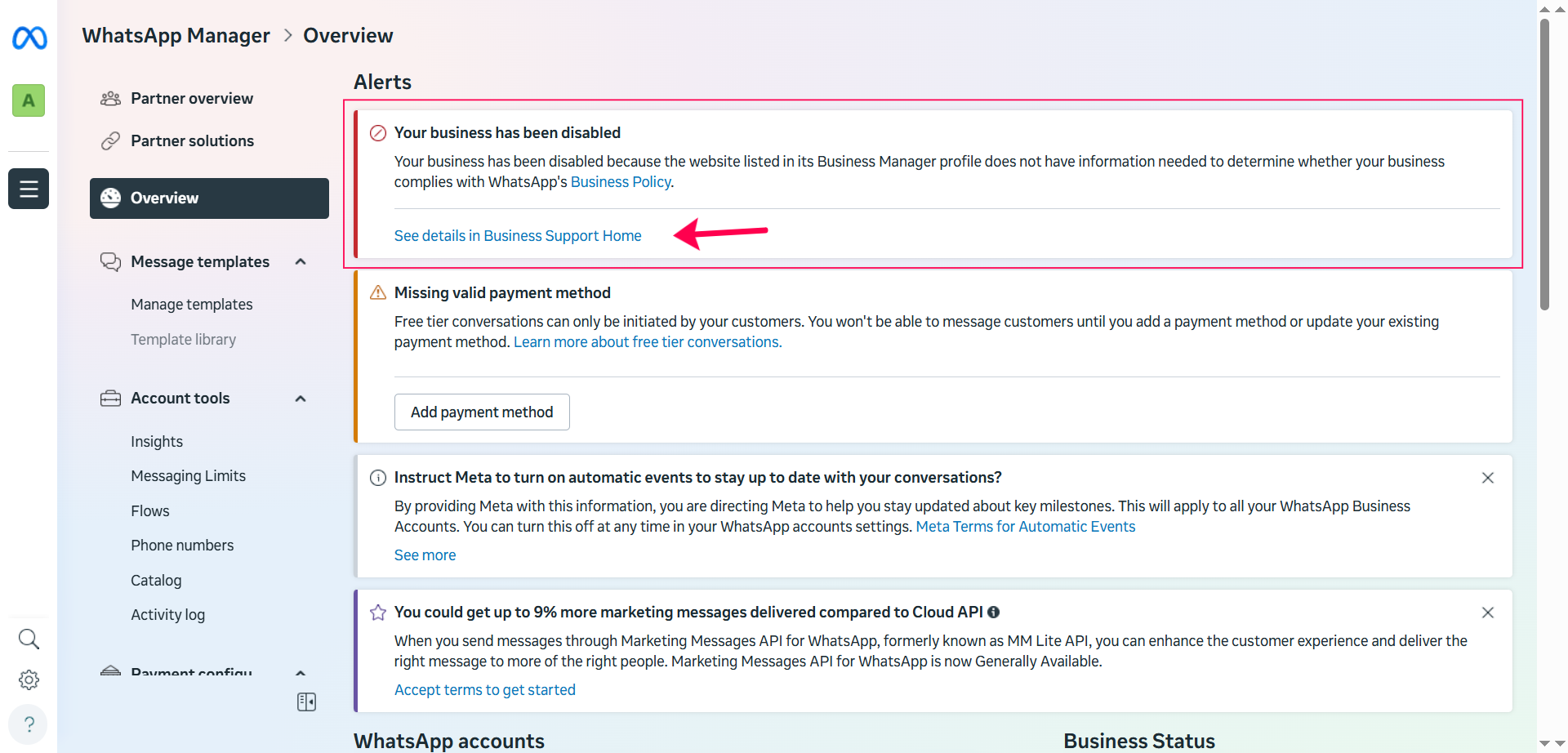
On this page, you’ll see the exact reason your account was restricted.
Common Reasons for WhatsApp Business API Bans
1. Website Issues
If the restriction is related to your website:
- Ensure the submitted URL is correct and accessible
- The website should clearly represent your business
- Business name, services, and contact details must be visible
- Remove misleading or incomplete content
2. Spam Reports
If the reason shows “SPAM”, it means:
- A high number of users reported or blocked your messages
- Messages may have been sent without proper opt-in
- Messaging frequency or content may be aggressive or unclear
⚠️ Spam-related bans are harder to reverse, but a review can still be requested after fixing messaging practices.
3. Business Policy Violations
If WhatsApp mentions a policy violation, it usually means:
- Your business category is restricted
- Your services or products violate WhatsApp policies
- Message content does not comply with WhatsApp guidelines
Before requesting a review:
- Carefully review WhatsApp Business & Commerce Policies
- Remove or update restricted content
- Ensure messaging follows approved use cases
Step 2: Request an Account Review
Once you’ve fixed the issue, you can request a review directly from WhatsApp.
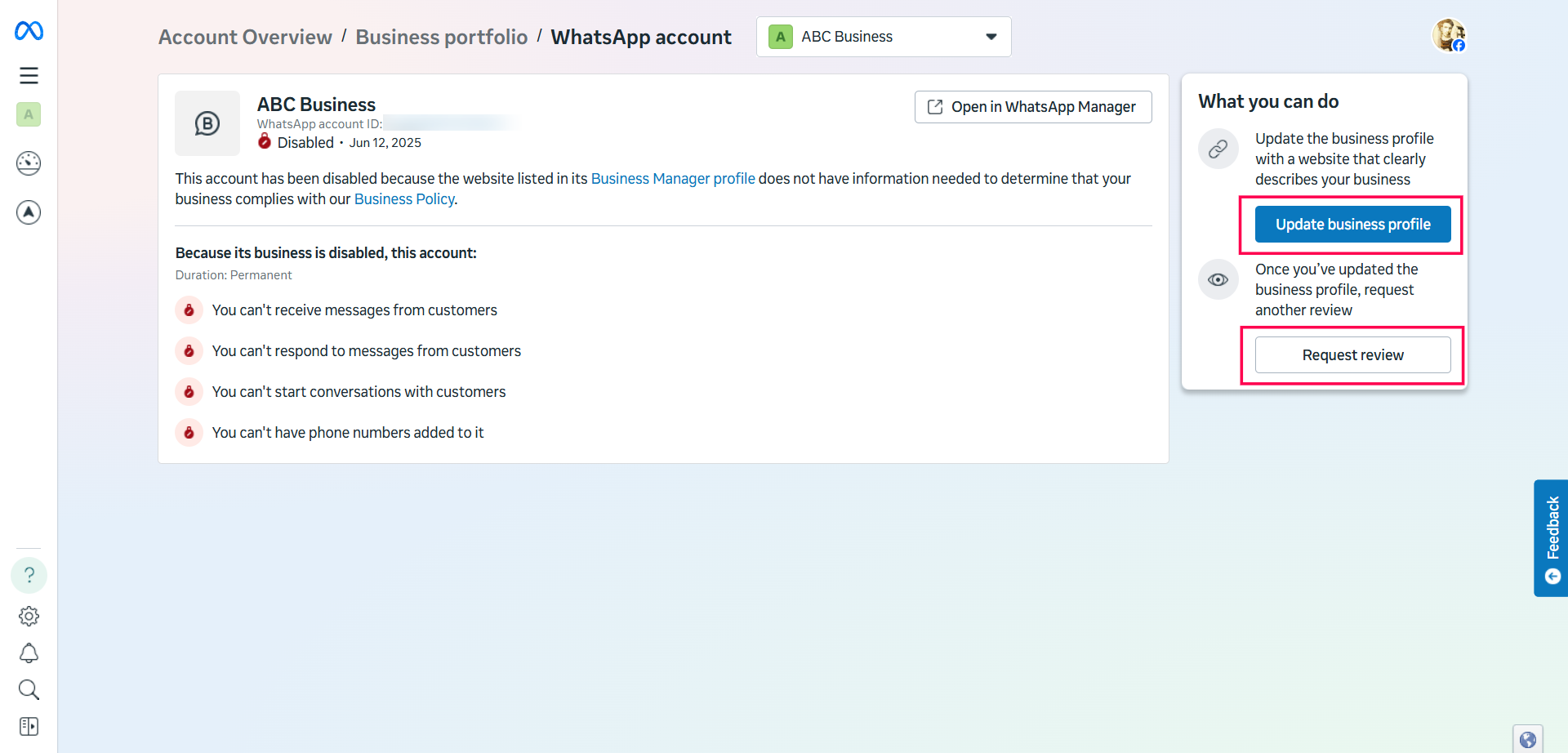
- On the Account Review page, you will see the specific reason for the restriction
- For example, my account was disabled because the website listed in the Business Manager profile lacked the necessary information to confirm that my business complies with Meta Business Policy.
- I have now updated the missing business information and am ready to request a review.
- Please click on "Request Review." 👇
If the button is available, proceed to submit your explanation.
Step 3: Submit a Clear and Professional Explanation
In the review pop-up, briefly explain:
- What caused the issue
- What changes you’ve made
- How you are now compliant
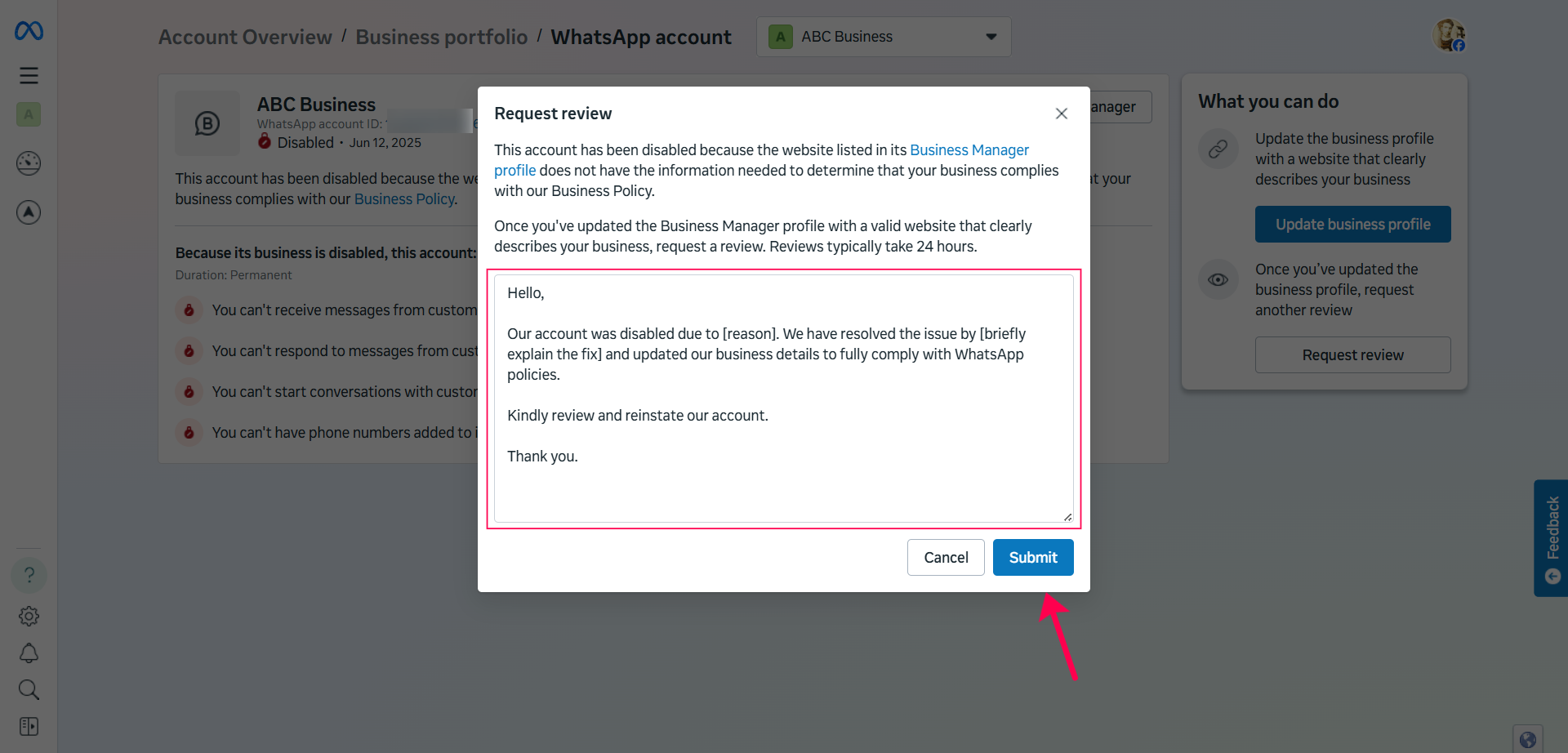
Sample Review Message:
Hello,

Our account was disabled due to [reason]. We have resolved the issue by [brief explanation of fix] and updated our business details to fully comply with WhatsApp’s policies.

Kindly review our account and consider reinstating access.

Thank you.
You may include:
- Updated website links
- Proof of user opt-in
- Clarification of messaging use cases
Review Outcome & Next Steps
- Reviews are often processed within a few hours, if no additional details are required
- If your request is rejected, carefully review the reason, fix any remaining issues, and submit a new request
When Review Is Not Available
If:
- The "Request Review" button is missing or disabled
- You cannot submit a review at all
This usually indicates a permanent ban.
In such cases:
- The number cannot be reinstated
- You must start fresh with a new phone number and a new WhatsApp Business API account
Need Help?
If you're unsure about the ban reason or need guidance during the review process, you can contact the WhautoChat Support Team:
Note: If WhatsApp marks a number as permanently banned, no platform or provider can reverse it, including WhautoChat.